← All guides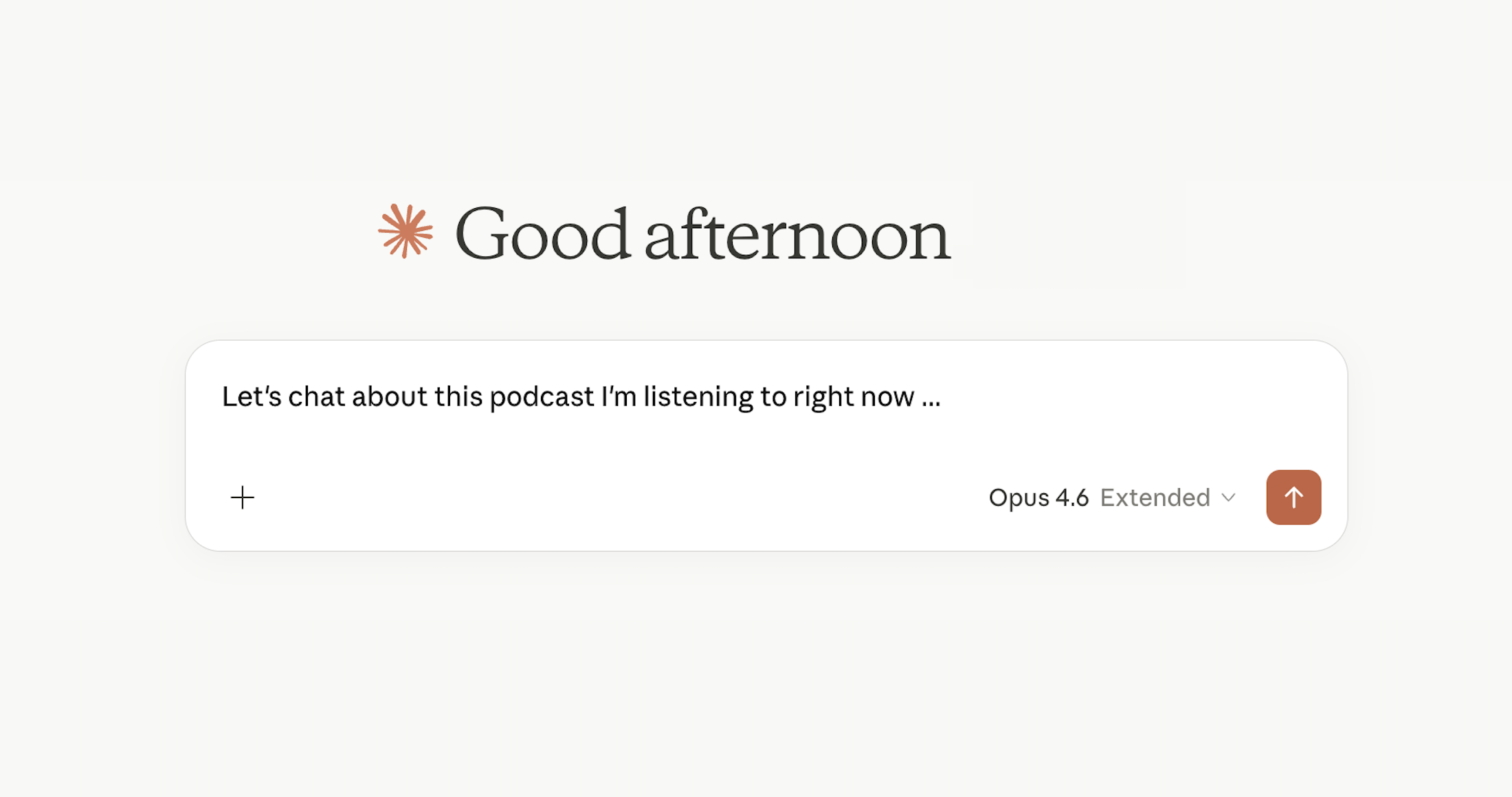
How to Build an Automatic Podcast Transcriber
A step-by-step guide to setting up an agent that monitors your podcasts, transcribes new episodes, and saves the transcripts to Google Drive so you can chat with them in Claude.
A step-by-step guide to setting up an agent that monitors your podcasts, transcribes new episodes, and saves the transcripts to Google Drive so you can chat with them in Claude.
Total setup time: about 30 minutes.
n8n:Sign up at n8n.io for the cloud version, or self-host on a $6/month DigitalOcean droplet if you’re comfortable with servers. The cloud version is the fastest way to get started.
AssemblyAI: Sign up at assemblyai.com and grab your API key from the dashboard. They give you free credits to start.
Google Drive: Create a folder called “Podcast Transcripts” (or whatever you want). This is where your transcripts will land.
Every podcast has an RSS feed URL. This is how n8n will know when a new episode comes out.
The easiest way to find it: go to listennotes.com, search for the podcast, and look for the RSS link on the podcast’s page. Copy that URL.
Alternatively, search “[podcast name] RSS feed” and you’ll usually find it.
Create a new workflow with the following nodes connected in order:
Set it to run every hour. This checks for new episodes regularly without hammering the feed.
Paste in the RSS feed URL from Step 2. This pulls the latest episodes from the feed.
Use n8n’s static data to track which episodes you’ve already processed. Compare the episode GUID against your stored list. If it’s new, continue. If not, stop. This prevents duplicate transcriptions.
Example logic:
const staticData = $getWorkflowStaticData('global');
const lastProcessedGuid = staticData.lastProcessedGuid || '';
const currentGuid = $input.first().json.guid;

if (currentGuid === lastProcessedGuid) return []; // Already processed

staticData.lastProcessedGuid = currentGuid; // Save for next run
return $input.all();Send a POST request to https://api.assemblyai.com/v2/transcript with:
Authorization: YOUR_API_KEY{ "audio_url": "...", "speaker_labels": true }The audio URL comes from the RSS feed’s enclosure field.
AssemblyAI processes audio asynchronously. Add a Wait node (3 minutes), then poll https://api.assemblyai.com/v2/transcript/{id} until status is “completed.”
Take the completed transcript and format it as readable markdown with speaker labels:
Speaker A: [text]
Speaker B: [text]
Add the episode title, podcast name, and date at the top of the file.
Connect your Google Drive account in n8n and use the Google Drive node to save the formatted markdown file to your Podcast Transcripts folder.
Name the file something like: Episode Title (Podcast Name).md
Turn on the workflow. To test immediately, you can trigger it manually. Check your Google Drive folder. You should see the transcript appear within a few minutes of the episode being processed.
Duplicate the workflow for each podcast you want to monitor, swapping out the RSS feed URL. Or, if you want to get more advanced, maintain a list of RSS feeds and loop through them all in one workflow.
When you’re listening to an episode and something sparks an idea:
Claude now has the complete conversation from the episode and can discuss any part of it with you in depth.
speaker_labels: true in AssemblyAI makes transcripts much more readable and helps Claude understand who said what.Get in touch and we’ll show you what’s possible.